
Campsite management software with remote thermostat control
Set the heating and air conditioning of chalets and toilet blocks remotely from Tillor, and see per thermostat whether the change actually arrived.

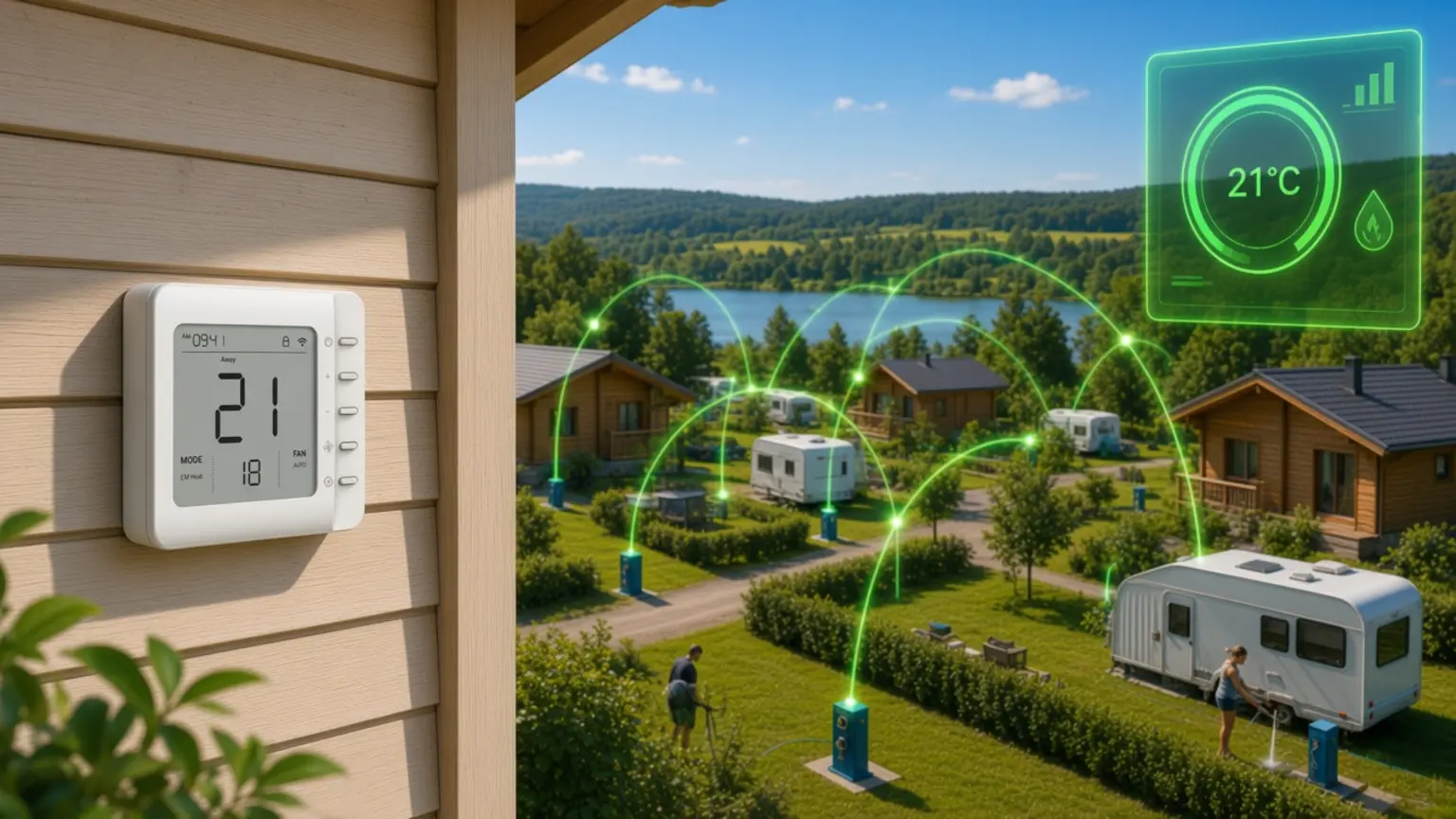
Guests arrive in chalet 12 on Friday afternoon, and it is 14 degrees inside. Or the other way round: an empty chalet that kept heating at 21 degrees all week. Anyone who wants to adjust the heating today walks past every accommodation or calls the maintenance team. With a thermostat you control remotely from your campsite management software, you set the temperature from behind the reception desk.
Tillor works with the Milesight WT201, a wall thermostat that controls heating, air conditioning or a heat pump. It talks to Tillor wirelessly over LoRa, the same low-power, long-range network our LoRa water meters use. The thermostat reports to your park's LoRa gateway, the receiver on or near the site, and Tillor sends its commands back the same way.
🌡️ Heating and air conditioning from the terrain page
Link each thermostat to a terrain and control it where you already work: target temperature, mode, fan and on or off. Tillor keeps sending a change until the thermostat confirms it, and you see which ones are still on their way. Everything about the settings is in the thermostats documentation.
Copy link to this sectionControl it where you already work
You register a thermostat with a name and the code on its label, and link it to a terrain: a chalet, a mobile home, the toilet block. The page of that terrain then shows a small thermostat. With minus and plus you set the target temperature one degree lower or higher, between 5 and 28 °C. You choose heat, cool or auto, the fan speed, and one button turns the control on or off. There is no window and no button to confirm: what you tap goes out straight away.
What reception staff use it for:
- Before an arrival, you warm up the chalet a few hours ahead, without anyone having to go there.
- After a departure, you switch the control off or turn it low, so an empty accommodation does not heat all week.
- In summer, you set an accommodation with air conditioning to cool before the guests walk in.
- When a guest calls because they are cold, you see the measured temperature and humidity, and adjust the setting right away.
A staff member makes those adjustments. Tillor does not turn up the heating automatically on the day of arrival.
Copy link to this sectionKnowing whether the change arrived
Wireless has a drawback: a message can get lost on the way, and in Europe a LoRa device may only transmit for a small share of the time. That is why Tillor stores what you asked for as a desired value, sends it at once and keeps trying until there is proof: the device answers, a new report shows the requested value, or the network confirms the message arrived.
As long as that proof is missing, a thin orange line runs under that control. Tap it and you see what you asked for, what the device last reported, how many attempts there have been and when the next one comes. Tillor tries again after 1, 2, 5, 10 and 15 minutes, then every half hour, until the thermostat confirms or refuses. If you no longer want the change, you cancel it.
Tap plus five times and the first value goes out at once, then only the last one. The ones in between are dropped. Tillor sends a device restart only once, because restarting twice helps nobody. Only if the network dropped the message before the device received it does it go out again.
Copy link to this sectionEvery setting of the thermostat
On the detail page of a thermostat you find all the settings of the WT201, grouped: a weekly schedule with plans per day and hour, the time zone and daylight saving time, dehumidifying, the child lock, how often the device reports, and the device details with the active alarms. In the command history you see per command whether it was confirmed, refused or replaced.
Some commands can damage the installation or lock people on site out, such as changing the wiring or switching off frost protection. Those need an extra permission and a confirmation before they go out. So someone who may only operate the thermostat cannot overwrite the wiring by accident.
Copy link to this sectionWho may do what
There are three permissions: view, operate and manage thermostats. Someone who may only operate sets the temperature but does not register or remove devices. Every change, including a cancelled or refused one, goes into the activity log and into the terrain's events. So afterwards you can see who set the chalet to 25 degrees.
Tillor only keeps the last reported state. There is no chart of the temperature over the week yet, and you see the device's alarms on the thermostat itself, without a message to your colleagues.
Copy link to this sectionWhat it looks like in Tillor
You find the thermostats under Park > Thermostats and on the page of every linked terrain. What you need to get started, every setting and answers to questions like "why does the line stay?" are in the thermostats documentation.
Want to see how you heat a chalet from the reception desk? Request a demo and we will look together at the thermostats in your accommodations today.
More from the blog

✨ Camping Vlasaard chose recreation park software: from paper to one PMS
How Vlasaard NV chose campsite management software to replace paper, spreadsheets and separate tools with one PMS for KC80 barriers, LoRa meters, ICY electricity and Mollie payments.
 Niels WarrensCustomer story
Prepaid shower system for campsites: shower and door with one NFC tag
A prepaid shower system for your campsite: shower and open the door with an NFC wristband or key fob, start washing machines with a QR code.
Niels WarrensProduct
Custom fields in campsite software: extra data per guest or pitch
Record what your park needs to track, from the trailer's licence plate to the number of the electricity cabinet, with custom fields in your campsite management software.
Niels WarrensProduct